

Laptop Sticker Size Guide: Pick the Perfect Fit
Laptop sticker size refers to the recommended dimensions for decals placed on a laptop lid, typically ranging from 2 to 4 inches, that keep your design visible without overwhelming the surface. The industry-standard sweet spot is around 3 inches on the longest side. That single measurement balances detail, legibility, and proportion on most laptops. Get the size wrong and your sticker either disappears into the background or turns your lid into a cluttered mess. This guide covers every dimension, shape, and material decision you need to get it right the first time.
What are the best laptop sticker dimensions?
The most versatile laptop sticker measures 3 inches on its longest side. At that size, logos, characters, and artwork stay sharp when viewed at arm’s length, which is the typical distance between your eyes and your laptop lid. Go smaller than 2 inches and fine details start to blur. Go larger than 4 inches and a single sticker can dominate the entire lid.
Each size range has a clear purpose. A 2-inch sticker works well for simple icons, small logos, or accent pieces that fill gaps between larger designs. A 3-inch sticker handles most artwork, character illustrations, and brand graphics with room to breathe. A 4-inch sticker functions as a statement piece, the visual anchor of your whole layout.
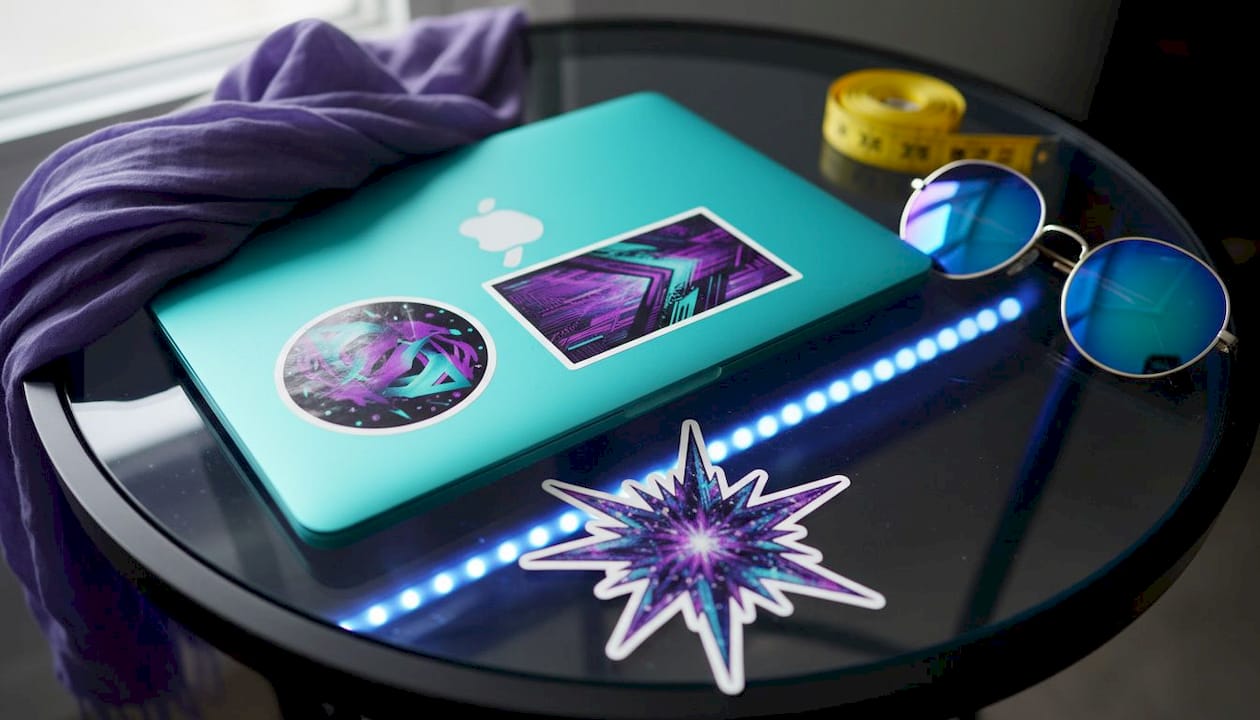
Designs viewed at arm’s length need at least 70mm (roughly 2.75 inches) of width for clarity and impact. That number aligns directly with the 3-inch recommendation. Anything below 50mm risks losing detail entirely, especially on designs with thin lines or small text.
| Sticker size | Best use on a laptop |
|---|---|
| 2 inches (50mm) | Small icons, logos, accent fills |
| 3 inches (75mm) | Character art, brand graphics, versatile designs |
| 4 inches (100mm) | Statement pieces, large illustrations |
| Mixed sizes | Curated collage layouts with visual hierarchy |
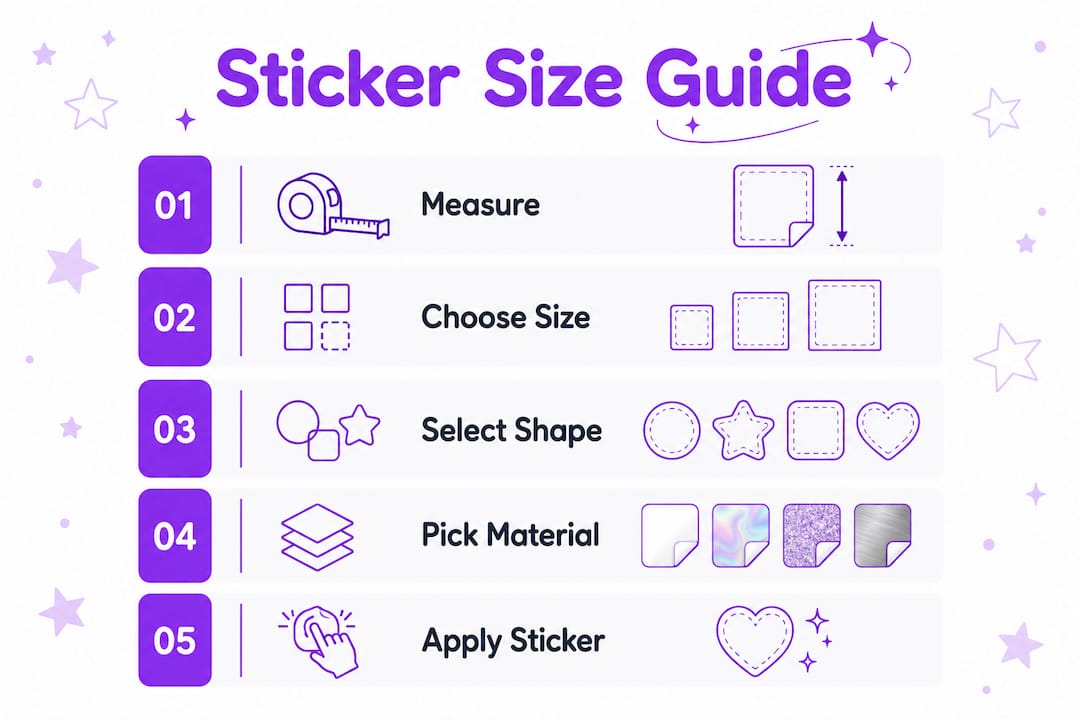
Pro Tip: A 3-inch sticker also fits water bottles and notebooks perfectly, so if you ever want to move it, the size still works.
How to measure and choose the right sticker size for your laptop
Start by measuring your laptop lid’s flat printable area, not the screen diagonal. The lid is always slightly smaller than the screen size listed in the product name. A “15-inch laptop” typically has a lid around 13.5 inches wide, and not all of that surface is flat.
Laptop lid curvature can reduce usable sticker width by 15–25%. That means a 15-inch lid may only offer 10–11 inches of truly flat, adhesion-friendly space. Placing a large sticker across a curved edge causes lifting at the corners, which ruins both the look and the longevity of the decal.
Follow these steps before you order:
- Measure the flat area. Use a ruler across the center of your lid, stopping where the surface begins to curve at the edges.
- Sketch your layout. Draw the lid dimensions on paper and block out where each sticker will go. This prevents overcrowding before you spend a dollar.
- Print a paper mockup. Print your design at 100% scale on plain paper, cut it out, and place it on your laptop. Screens lie about scale. Paper does not.
- Measure by the longest side. For irregular or die-cut shapes, size is reported by the longest dimension. A tall, narrow sticker listed as “3 inches” is 3 inches tall, not wide.
- Plan your composition. Decide whether you want one large focal sticker or a cluster of smaller ones before ordering. Mixing one 4-inch piece with two or three 2-inch accents creates a natural hierarchy.
Pro Tip: Tape your paper mockups to the lid and photograph it from a normal sitting distance. You will immediately see whether the sizing feels right.
What are popular sticker shapes and material choices for laptops?
Shape affects how a sticker reads on your lid just as much as size does. A circle at 3 inches feels more compact than a rectangle at the same measurement. A die-cut shape that follows the outline of a character or logo feels larger and more dynamic than a square of equal dimensions.
Common laptop sticker shapes include:
- Circle and oval. Clean, contained, and easy to cluster without looking chaotic.
- Rectangle and square. Grid-friendly and simple to align in rows or columns.
- Die-cut. Cut to the exact outline of the design. These feel the most custom and work especially well for character art or brand marks.
- Kiss-cut. The sticker is cut to shape but sits on a square or rectangle backing sheet. Easy to peel and reposition.
Material is where most people make a costly mistake. Vinyl is the recommended material for laptop stickers because it holds color well, resists moisture, and removes cleanly without leaving adhesive residue. Paper stickers absorb oils from your hands, fade faster, and often tear during removal. A metallic vinyl decal adds a chrome or mirror finish that paper simply cannot replicate.
Finish matters too. Matte laminate finishes reduce glare and hide fingerprints far better than glossy surfaces. Laptops live in bright rooms and coffee shops. A glossy sticker catches every overhead light and shows every smudge. Matte keeps the design the focus, not the reflection.
What are common mistakes when choosing laptop sticker sizes?
The most frequent error is ordering stickers that are too small. A design that looks bold on a phone screen can shrink to an unreadable blur at 1.5 inches. Details fine on screens may vanish below 50mm, so always check your design at actual print size before committing.
Other common mistakes include:
- Skipping the paper mockup. Digital previews distort scale. A sticker that looks perfect on your monitor may feel tiny on your actual lid.
- Ignoring lid curvature. Ordering a wide sticker without accounting for curved edges leads to peeling corners within days.
- Overcrowding with large stickers. Filling the lid with only 4-inch pieces leaves no breathing room and looks cluttered rather than curated.
- Mixing incompatible finishes. Pairing matte and glossy stickers on the same lid creates visual noise. Pick one finish and stay consistent.
- Forgetting material quality. Paper stickers leave residue and tear. Vinyl is the only material worth using on a laptop.
Combining a few larger statement stickers around 4 inches with smaller accent stickers around 2 inches creates a balanced, curated laptop look. Overcrowding with only large stickers looks cluttered. Mixing sizes improves the overall aesthetic significantly.
Balancing sticker sizes on a laptop avoids a cluttered appearance while enabling both bold and subtle personalization. Think of your lid as a small gallery wall. A gallery with only massive paintings feels overwhelming. One with a mix of sizes feels intentional.
Key Takeaways
Choosing the right laptop sticker size comes down to three things: measuring your lid’s flat area accurately, selecting sizes between 2 and 4 inches based on design complexity, and mixing sizes to build a layout with visual balance.
| Point | Details |
|---|---|
| Standard size range | Most laptop stickers fall between 2 and 4 inches on the longest side. |
| 3-inch sweet spot | A 3-inch sticker balances detail, legibility, and proportion for most laptop lids. |
| Measure flat area first | Lid curvature reduces usable space by 15–25%, so measure before ordering. |
| Use paper mockups | Print designs at 100% scale and place on your lid to verify size before buying. |
| Mix sizes for balance | Pair one 4-inch statement piece with 2-inch accents to avoid a cluttered look. |
What I have learned from stickering dozens of laptops
Most people overthink the artistic side and underthink the physical side. They spend an hour choosing a design and thirty seconds choosing a size. That order is backwards. The size determines whether the design works at all.
My default starting point is always a 3-inch sticker. It is the most forgiving size on the market. It reads clearly at arm’s length, fits on a 13-inch or 15-inch lid without dominating, and works on other surfaces if you ever want to move it. Starting with one 3-inch anchor piece and building outward with 2-inch accents gives you a layout that looks considered rather than random.
The paper mockup step is the one most people skip and later regret. Screens genuinely mislead you about scale. I have seen people order a 2-inch sticker expecting something bold and receive something that looks like a postage stamp on their lid. Thirty seconds with a printer and a pair of scissors saves you from that disappointment.
On material, I will always choose vinyl with a matte finish for a laptop. The chrome and metallic vinyl options from Vimpi are a strong example of what quality vinyl looks like in practice. The finish stays sharp, the adhesive releases cleanly, and the design holds up through daily use. Glossy stickers look great in product photos and mediocre on an actual laptop in a lit room.
Personalize confidently. Your laptop lid is one of the few surfaces you look at for hours every day. Getting the sizing right means you will actually enjoy what you see.
— Vimpi
Vimpi’s chrome stickers are sized for your laptop
Vimpi designs vinyl, kiss-cut stickers built for laptop personalization. Every piece uses durable vinyl that removes cleanly without residue, and the chrome and metallic finishes hold their color through daily use.
The Chrome Emoji Sticker Pack and the Broken Chrome Heart Decal both fall in the 2-to-4-inch range that works best on laptop lids. Vimpi’s Y2K-inspired designs give you a distinct look that generic sticker packs simply do not offer. Browse the full collection at Vimpi and find the sizes and shapes that fit your layout.
FAQ
What is the best size for a laptop sticker?
The best size is 3 inches on the longest side. It fits most laptop lids without dominating the surface and stays readable at arm’s length.
How do I measure my laptop for stickers?
Measure the flat area of your lid with a ruler, stopping where the surface curves at the edges. Lid curvature reduces usable space by 15–25%, so do not rely on your laptop’s screen size as a guide.
What shape works best for laptop stickers?
Die-cut and kiss-cut shapes work best because they follow the design outline and look intentional. Circles and rectangles are easier to arrange in grid-style layouts.
Should I use matte or glossy stickers on my laptop?
Matte finishes are the better choice for laptops. They reduce glare from overhead lighting and hide fingerprints, keeping the design visible and clean throughout the day.
Can I mix different sticker sizes on my laptop?
Yes, and mixing sizes is actually the recommended approach. Pair one 4-inch statement piece with two or three 2-inch accent stickers to create a balanced, curated layout rather than a cluttered one.